Product ∙
Investment Holdings Sync
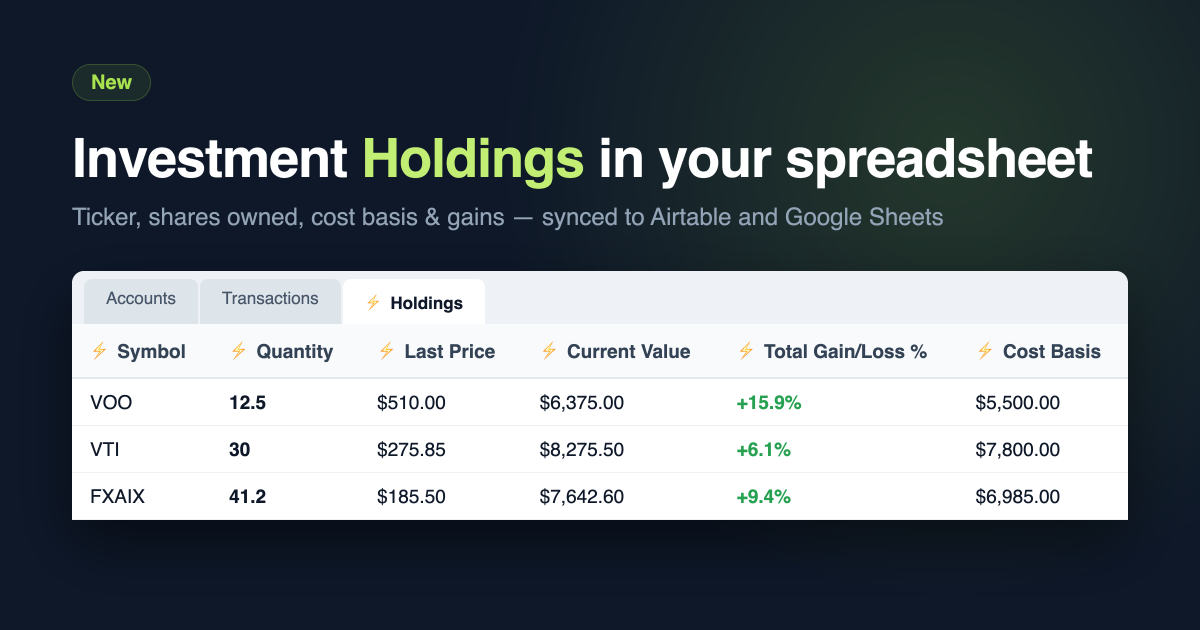
Fintable now syncs your investment holdings — one row per security, with ticker, shares owned, cost basis and gains — to a Holdings table in Airtable or a Holdings tab in Google Sheets.
Until now, a connected brokerage account only showed up as transactions — buys, sells and dividends mixed in with your groceries and utility bills. Useful for expense tracking; not so useful for answering the question investors actually care about: how many shares of each security do I own right now?
What you get
For every position in your connected brokerage accounts, Fintable keeps a row up to date with:
- Symbol and name — the ticker and security name
- Quantity — the number of shares or units you own (the number that matters!)
- Last price and current value — refreshed on every sync
- Cost basis — total and average per share
- Gain/loss — today's and total, in dollars and percent
Rows update in place on every sync, so your spreadsheet always reflects your current positions — and everything else in your spreadsheet stays untouched. Your own columns, rows, formulas and pivot tables are safe.
Zero setup
There is nothing to configure. If a connected account has holdings, the Holdings table (Airtable) or tab (Google Sheets) is created automatically on the next sync, with all columns ready. On Google Sheets you can rename, enable or disable columns from the new Columns Holdings page in your integration settings.
Which brokerages?
Holdings sync works with both of our investment-capable providers:
- SnapTrade — brokerage connections like Vanguard, Schwab, Robinhood and many more
- Akoya — institutions like Fidelity
Connect a brokerage from your dashboard the same way you connect a bank, and your holdings will appear after the first sync.
Thank you
This feature came directly from customer feedback — a retired Fintable user who told us that for investments, the balance changes by the minute, but "the total shares owned is the important number." We agreed. Keep the feedback coming: [email protected].
Read more about the field details in the User Guide, and happy investing!