Product ∙
🗂️ New and improved Workspaces: team logins, roles and single sign-on (SSO/SAML)
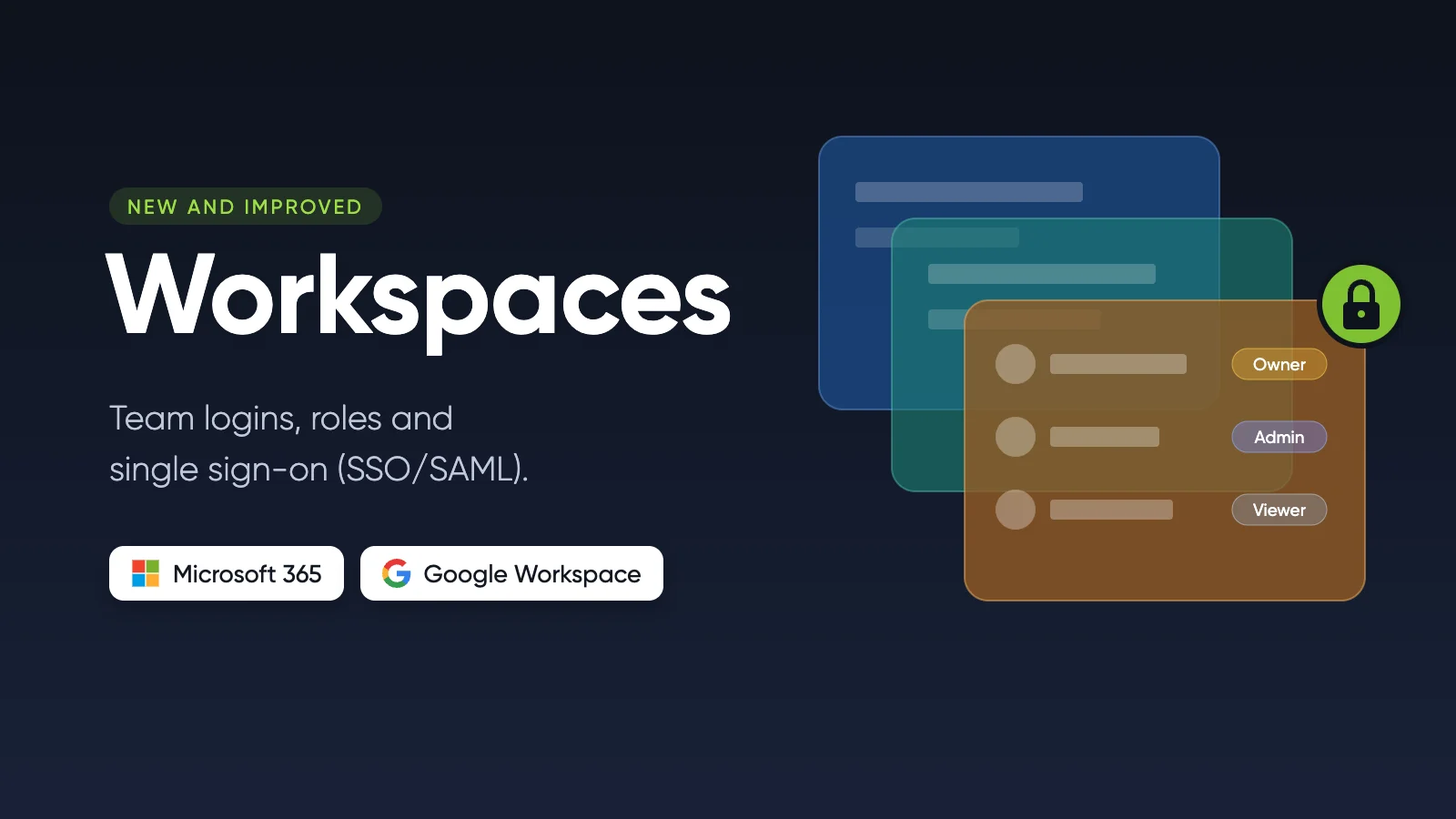
Workspaces launched in August as separate, self-contained sets of books under one plan. Since then we have made them truly multi-user: every person has their own login and a role in each Workspace, invited people can join without a password, and your team can sign in with your company's identity provider: Microsoft 365, Google Workspace, Okta, or any SAML 2.0 or OpenID Connect provider.
Here is everything that is new, in one place.
Single sign-on (SSO/SAML)
On the Business and Enterprise plans, the people at your organization's email domain can sign in to Fintable with your identity provider: Microsoft 365 (Entra ID), Google Workspace, Okta, or any SAML 2.0 or OpenID Connect provider. You set it up yourself on the Single sign-on page, linked from Workspaces / Users and Security:
- Choose your domain and provider. Enter your email domain, choose SAML or OpenID Connect, and follow the setup guide for your provider on the page. For SAML, you paste your provider's metadata.
- Prove the domain with a DNS TXT record. Fintable re-checks it every day.
- Decide who can join. Invitations always work. You can also let anyone at your domain join one Workspace, as a Viewer or Editor, without an invitation, and choose whether someone new gets a Fintable account on their first sign-in (off by default).
Your people then see Sign in with Microsoft Entra ID SSO for example.com (or their provider's name) as soon as they
type their work address on the login page, and on their invitation pages. Your organization also gets its own sign-in
page at fintable.io/sso/your-domain.
Fintable's own two-factor authentication still applies, and your provider never takes over an existing Fintable account on its own word: the account's owner signs in once and approves the link.
Roles
Each person has a role in each Workspace they belong to, and it can differ from one Workspace to the next: an Admin of one and a Viewer of another.
| Role | Can |
|---|---|
| Viewer | See accounts, transactions and reports, and start a sync |
| Editor | Also categorize and edit rules, connect and remove banks, set up spreadsheets and the sync schedule, and give API tokens and apps access |
| Admin | Also invite and remove Editors and Viewers |
| Owner | Also manage Admins, rename or delete the Workspace. The Owner's plan pays for it; there is exactly one |
Invite anyone, no passwords to share
Add someone to a Workspace by email and pick their role. They get an invitation, valid for seven days, and join by signing in, or by creating a free Fintable account right on the invitation page. Invited people need no plan of their own, and there is no charge per person.
Setting a password is now optional. On the login page, you can choose Email me a sign-in link instead: the link works once, for five minutes, in the browser that asked for it, and two-factor authentication still applies.
A Personal Lifetime licence now includes two users, so you can invite one person, such as your partner, into your Workspace.
A Workspaces page that shows who can open what
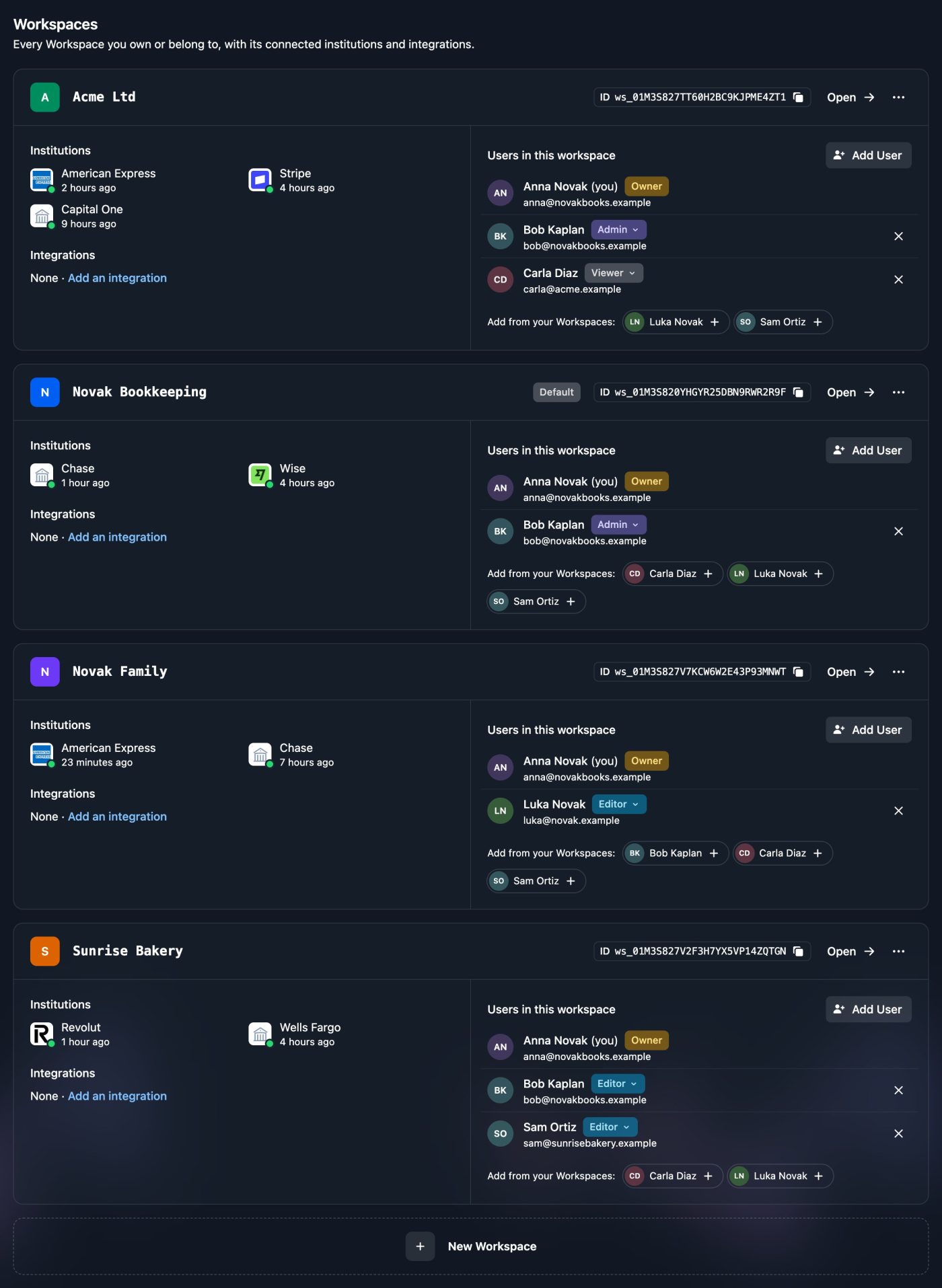
Workspaces / Users in the sidebar shows every Workspace as a card with its bank connections, its integrations, and its users with their roles. Change a role from the menu beside a person, add someone from your other Workspaces in one click, and copy each Workspace's ID for the API.
Smaller improvements
- 🎨 A colour for each Workspace, so you can tell them apart at a glance.
- 🔒 A Shared Workspace notice whenever you are in a Workspace that other people can open.
- 🔔 New accounts at your bank. When Plaid reports new accounts on a connection, such as a replacement card, the Owner and Admins get an email asking them to reconnect and tick the new accounts.
For accountants, developers and AI assistants
Everything above works through the API and our MCP server, so a firm can onboard a client without opening the dashboard:
POST /workspaces(create_workspace) creates the client's Workspace, available to your credential straight away.POST /workspaces/{id}/invitations(invite_workspace_member) emails the client an invitation, for example as an Editor.- A connection link made for the client (
for_user) lets them connect their own bank with their own login. The connection lands in their Workspace, and the link can send them back to your app afterwards.
Set a Workspace's sso_auto_join_role to let people at your domain join it through single sign-on. As before, an API
token or AI app reaches only the Workspaces you tick for it, and can do only what your role there allows.
Getting started
Open Workspaces / Users in the sidebar. Creating Workspaces, inviting people and single sign-on are on the Business and Enterprise plans. The user guide covers roles, managing users and single sign-on, and the API docs cover SSO setup in detail.
Questions? Get in touch.